The full Setups Table requires an active Basic or Founders Plan subscription. Free accounts can browse a limited view, but filtering, saved views, and AI Search require a paid plan. Compare plans →
Filter and Browse Active Strat Setups
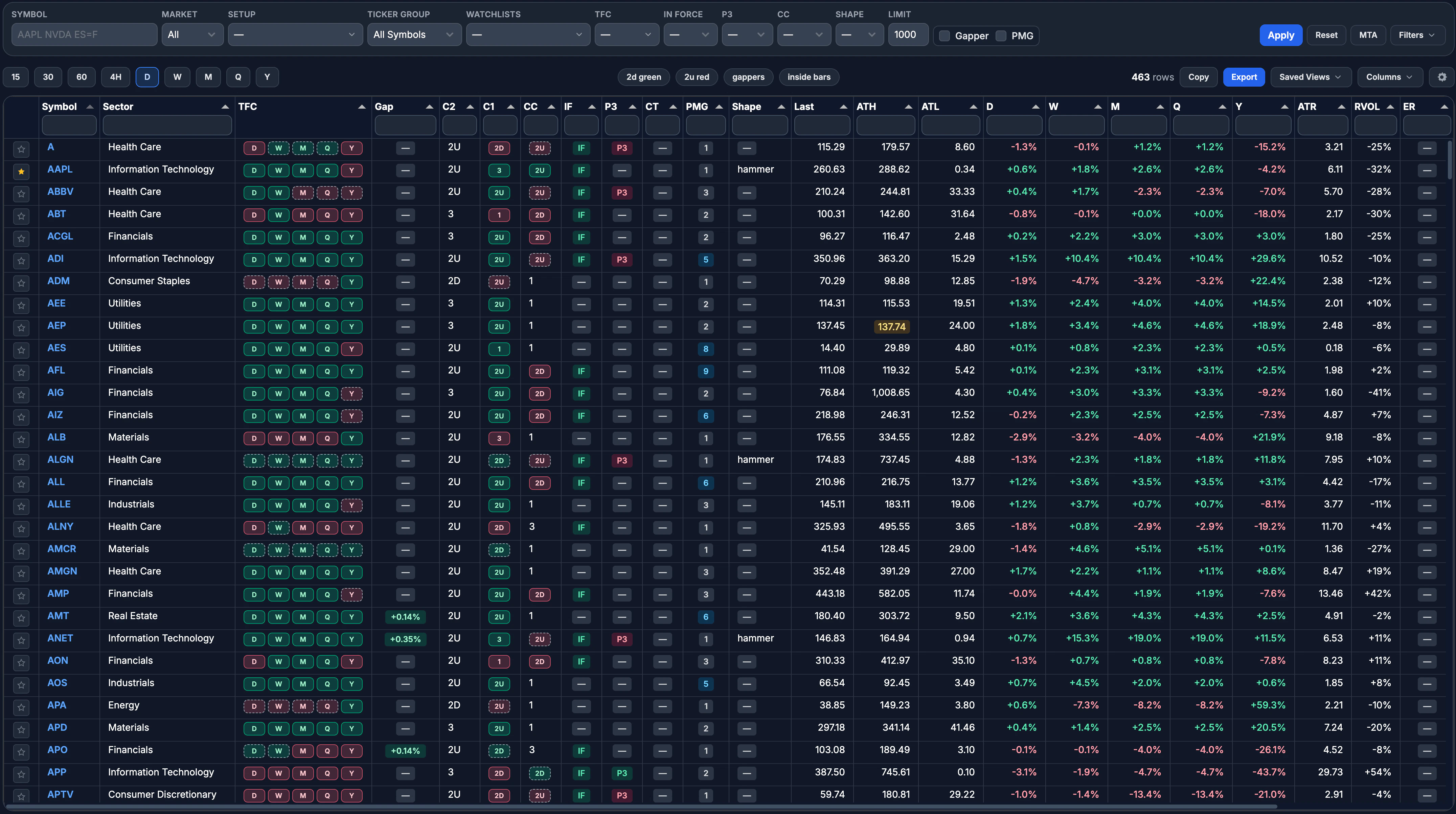
Columns at a glance
Each row represents one active setup on one timeframe. The table ships with a default column set you can reorder and hide to fit your workflow.Symbol and TF
Symbol and TF
Symbol is the ticker. TF (Timeframe) is the candle period the setup lives on — 15m, 30m, 60m, 4H, 12H, D, W, M, Q, or Y. Most traders focus on daily and higher timeframes for swing setups and intraday timeframes for session-day entries.
TFC (Timeframe Continuity)
TFC (Timeframe Continuity)
Shows the alignment of directional candles across higher timeframes. A fully green TFC column on a daily setup means the weekly, monthly, quarterly, and yearly candles are all pointing the same direction — a strong tailwind for the trade.Failed-state chips are flagged with a distinct visual treatment when a timeframe’s TFC color contradicts its candle state — a green chip displaying a
2D candle, or a red chip displaying a 2U. These signal a higher-timeframe candle that has failed against the prevailing continuity, which often precedes a reversal or compression. Use failed-state chips as a heads-up that the trend on that timeframe is breaking down, even if the broader TFC stack still looks aligned.C2, C1, and CC
C2, C1, and CC
The three-candle setup structure: C2 is the target candle (the one you’re aiming for), C1 is the trigger candle (the one whose high or low gets breached to activate the setup), and CC is the current candle forming right now. Each cell shows the candle ID: 1 (inside), 2U (up), 2D (down), or 3 (outside).
In-Force (IF)
In-Force (IF)
A setup goes in force when price breaks above the trigger high (bullish) or below the trigger low (bearish). The IF column flags setups that are currently active — price has already crossed the trigger level and the trade is live.
P3
P3
The P3 flag marks setups where the current candle is a 3 (outside bar), creating a potential three-candle outside bar setup. P3 setups in force carry elevated urgency because an outside bar can resolve quickly in either direction.
PMG (Potential Max Gain)
PMG (Potential Max Gain)
PMG shows the price level where the setup reaches its maximum potential gain — typically the magnitude level derived from the target candle’s range projected outward. It gives you a reference for where the move could go if it runs.
C1 Shape
C1 Shape
The candlestick pattern of the trigger candle — hammer, shooter, doji, or standard. Shape context helps you evaluate the quality of the trigger before acting.
ATR and RVOL
ATR and RVOL
ATR (Average True Range) quantifies expected daily movement. RVOL shows relative volume compared to the 10-day average, displayed as a plus or minus deviation. High RVOL alongside a trigger often means participation is expanding.
Vol and PM Vol
Vol and PM Vol
Vol is the symbol’s session volume so far, formatted compactly (for example,
1.23M or 45.6K). It updates throughout the regular session and gives you a quick read on whether participation is unusually heavy or light alongside RVOL.PM Vol is the cumulative pre-market volume for the current session, sourced from real-time stock aggregate trades during the 4:00 AM ET to 9:30 AM ET pre-market window. It’s available for equities only — futures and crypto rows leave the column empty. Use it alongside the Gap column to confirm that pre-market gaps are backed by real participation rather than a few thin prints.Both columns are sortable and accept numeric header filters (for example, typing 1000000 shows only rows with at least 1M volume). They’re hidden by default on narrow layouts — right-click any column header to toggle them on. The PM Vol value persists through the regular session so morning context stays visible all day.Gap
Gap
The Gap column shows the signed premarket gap percentage for each symbol. Kicker gaps — unusually large moves relative to recent range — are highlighted with an orange ring so they stand out. Hover over a ringed chip to see a Kicker tooltip confirming the flag. Use this column alongside the Gapper filter to focus on names gapping into potential setups. See the gappers scanner page for details on how gaps and kickers are detected.
ATH / ATL
ATH / ATL
ATH (All-Time High) and ATL (All-Time Low) columns show how close the current price is to the historical extremes. Available for equities and crypto. Use the Near ATH or Near ATL filter to surface symbols approaching these levels — breakouts at all-time highs or reversals at all-time lows often attract heavier participation.
Sector and Earnings
Sector and Earnings
Sector groups the symbol into its SPDR sector for context. ER (Earnings) badges flag symbols with earnings inside the current weekly window so you can factor event risk before entering.
Filtering setups
The filter panel above the table lets you narrow the universe to exactly the setups you care about. Filters stack — combine as many as you need. Admins can also edit the same filters in the filter modal launched from the toolbar when they want a larger, focused view of every control.- By setup sequence
- By CC state
- By timeframe
- In-force only
- Continuation filter
- Favorites and gappers
- By candle color
Pick a C2-C1 or C2-C1-CC sequence from the setup dropdown: for example, 1-2U (inside day into up candle), 2D-3 (down candle into outside bar), or 1-2-2 (inside day, two-candle sequence into another two). The filter expands shorthand entries automatically — typing
2 matches both 2U and 2D continuations.Filter modal
The Filters toolbar button that opens this modal is currently gated to superuser accounts while we finish rolling out the roomier layout. The persistent filter panel above the table — and the mobile slide-over drawer — remain available to everyone, with the same controls. If you don’t see the Filters button in the desktop toolbar, you have full access to the same filters from the panel directly above the table.
1
Open the modal
Click Filters in the toolbar (next to the row count and pagination). The button only appears for superuser accounts. The modal opens centered on screen and temporarily hosts the same filter form used by the persistent panel.
2
Edit any filters
The modal lays the controls out in a condensed three-column grid with inline labels — symbol, market, ticker group, and watchlists on the left; In-Force, TFC, P3, C1 shape, and CC in the middle; and a combined market-cap min/max row, C2/C1 color, near extremes, earnings, hide continuations, and limit on the right. Advanced filters appear inline alongside the rest of the controls, so the Advanced toggle from the persistent panel is hidden while the modal is open. The setup-sequence dropdown is the one persistent-panel control that’s omitted from the modal — keep using the persistent panel for that. Anything you change is applied to the same underlying form.
3
Apply and close
Submit the form to reload the table with the new filters, or click the × in the modal header to dismiss it. The persistent panel reflects the same state as soon as the modal closes.
The modal is a desktop convenience layer on top of the existing panel — not a replacement. On phones and small tablets the filters still open as a full-screen slide-over drawer from the Filters button in the mobile toolbar.
Sorting
Click any column header to sort the table by that column. The first click sorts in descending order, the second sorts in ascending order, and the third clears the sort.Multi-column sorting
Hold Shift and click additional column headers to stack multiple sorts at once. The table uses the order you clicked — the first column you sort on stays the primary sort, and each subsequent Shift-click adds a secondary, tertiary, and so on. When sorting by change-percent columns across several timeframes, click the broadest timeframe first and work inward. For example, Shift-click Y, then Q, then M, then W, then D to keep yearly as the primary sort and daily as the last tiebreaker. This way, the broader trend context stays dominant.Saved views
Once you’ve built a filter combination you use regularly, save it as a named view.1
Configure your filters
Set up the combination of setup sequence, CC state, timeframe, and other filters that defines the view you want to save.
2
Save the view
Click the save icon in the filter bar and give the view a name. Your saved views appear in the views menu and persist across sessions.
3
Apply or delete a view
Open the Views dropdown to see all your saved views. Each row has an Apply button to load that view’s filters and a Delete button to remove it. You can delete any view directly from the list without needing to select it first.
4
Promote to toolbar chip
Frequently used views can be pinned to the filter toolbar as chips. One click activates the full filter state — no need to open the views menu.
Saved views are available to all logged-in users — no active subscription is required. You can create, update, and delete views as soon as you have an account.
AI Search
Click the wand button (✦) next to the gear menu in the toolbar to open AI Search, or press Q on your keyboard. The AI Search bar accepts natural language queries and translates them into table filters for you. Instead of manually selecting options, type what you’re looking for. AI Search understands Rob Smith’s Strat terminology natively — candle IDs (1, 2U, 2D, 3), failed states (failed 2D, failed 2U), setup sequences (1-2U, 2D-3, 1-2-2), and qualifiers like “in force,” “continuation,” or “gapper” all work as expected. A bare 2 expands to match both 2U and 2D.
Example queries:
all inside days— shows setups with a 1 (inside) candle on the daily timeframe2U weeks in force— weekly setups where C1 is 2U and price is above the triggerdaily outside bars going up— daily 3 candles with an up direction flag1-2U intraday with high volume— 15m through 4H setups matching that sequence, sorted by RVOL1-2D green on the daily— daily 1-2D setups where the trigger candle (C1) closed greenred C2 on the weekly— weekly setups where the target candle is redweek and month are 2U— multi-timeframe query returning symbols that are 2U on both weekly and monthlyday in force and week in force— symbols in force on both the daily and weekly timeframes
Multi-timeframe analysis (MTA)
MTA mode lets you walk through a sequence of timeframe conditions step by step to find symbols that meet requirements at multiple levels simultaneously.1
Open the MTA builder
Click MTA in the filter area to open the step builder. Each step represents one timeframe condition. The base table’s own filters act as Step 1; click Add Step to stack additional steps on top.
2
Define each step
For each step, choose a timeframe and the conditions you want — for example, Step 1: Weekly 2U in force. Step 2: Daily 1 candle. The builder lets you chain as many steps as you need. Click Apply MTA to run the analysis.
3
Run the analysis
The table returns only symbols that satisfy every step simultaneously. A name that is weekly 2U in force with a daily inside bar is a much higher-conviction candidate than one that only meets one condition.
Per-step candle filters
Each step exposes the same filter set as the base table, organized into two rows so you can dial in a specific candle structure on every timeframe: Primary row — top-level filters that define the setup itself:
State row — per-candle structure and color filters for the three candles in the setup:
Any field left on All matches everything for that timeframe, so you can isolate exactly the structure you want without overconstraining the step. Filters apply independently per step — a green C1 on the weekly does not constrain C1 color on the daily.
Example
Find symbols that are bullish on the weekly with a fresh inside-bar trigger on the daily:- Step 1 — TF: W, Setup:
1-2U, IF: on, C1 color: green - Step 2 — TF: D, CC: 1 (inside)
1-2 step does not match symbols already showing the same direction on a lower timeframe.
Saved views
MTA configurations save with your views. The view summary captures each step compactly — for example,W: 1-2U · IF · C1 green | D: CC 1 — so you can tell at a glance what a saved MTA scan does before applying it.
MTA works best when you lead with a higher timeframe direction and let lower timeframes provide the entry trigger. A weekly 2U in force gives you the bias; a daily 1 candle gives you the setup to watch.
Guided tour
The first time you open the Setups Table on a larger screen, a guided walkthrough appears. The tour walks you through the core controls — timeframe selectors, filters, saved views, columns, and the MTA builder — and creates a real Inside Bars saved view with a toolbar chip so you can see how saved views work in practice. Your existing filters, sort order, and layout are saved before the tour starts and restored when it ends, so nothing is lost. You can skip or exit the tour at any time. A replay hint appears near the gear menu afterward in case you want to run through it again later.Mobile layout
The Setups Table adapts to smaller screens with a mobile-optimized layout. On phones, the timeframe row scrolls horizontally, the top bar condenses into a compact row count, filters, and actions strip, and filter and action panels open as full-screen drawers with explicit close buttons. Column resizing is locked on touch devices so horizontal scrolling works without accidentally grabbing a resize handle. Saved views, column controls, and the reset action are accessible from the Actions menu on mobile, which opens as a popover that stays on-screen.The Setups Table requires you to be logged in. If you visit the page while signed out, you are redirected to the login screen.
Column customization
Right-click any column header to toggle visibility or drag headers to reorder them. Your layout preferences are saved automatically and persist across sessions for each asset class (core markets and crypto are saved separately).When viewing setups across all timeframes at once, a dedicated TF column appears next to Symbol so you can tell which timeframe each row belongs to without changing the normal single-timeframe layout.
Table help
Open the gear menu (⚙) at the top-right of the table and click Table Help to view a quick-reference modal that covers sorting and header-filter syntax. This is useful when you can’t remember the exact filter format for a column type. The modal covers:- Sorting — single-click, Shift-click stacking, and the recommended broad-to-narrow timeframe order.
- Text columns — case-insensitive contains match. Typing part of a value is enough.
- Numeric columns — plain numbers like
50are treated as “greater than or equal to” for columns such as Last, ATH, ATL, and ATR. - Change-percent columns (D / W / M / Q / Y) — signed thresholds.
5means “at least +5.0%”, while-5means “at most −5.0%”. - RVOL — filters by absolute magnitude.
20matches values at or beyond +20% or −20%. - Boolean columns (IF, CT, ER) — accepts
true/false,t/f,y/n, or1/0. - P3 — accepts its text values like
upanddownin addition to boolean shortcuts. - Gap — accepts explicit comparisons like
>=5or<=-3. A plain number matches either direction by magnitude.
Header filters run inside the table grid itself. They work independently from the top filter bar and can be combined with it for precise control.